

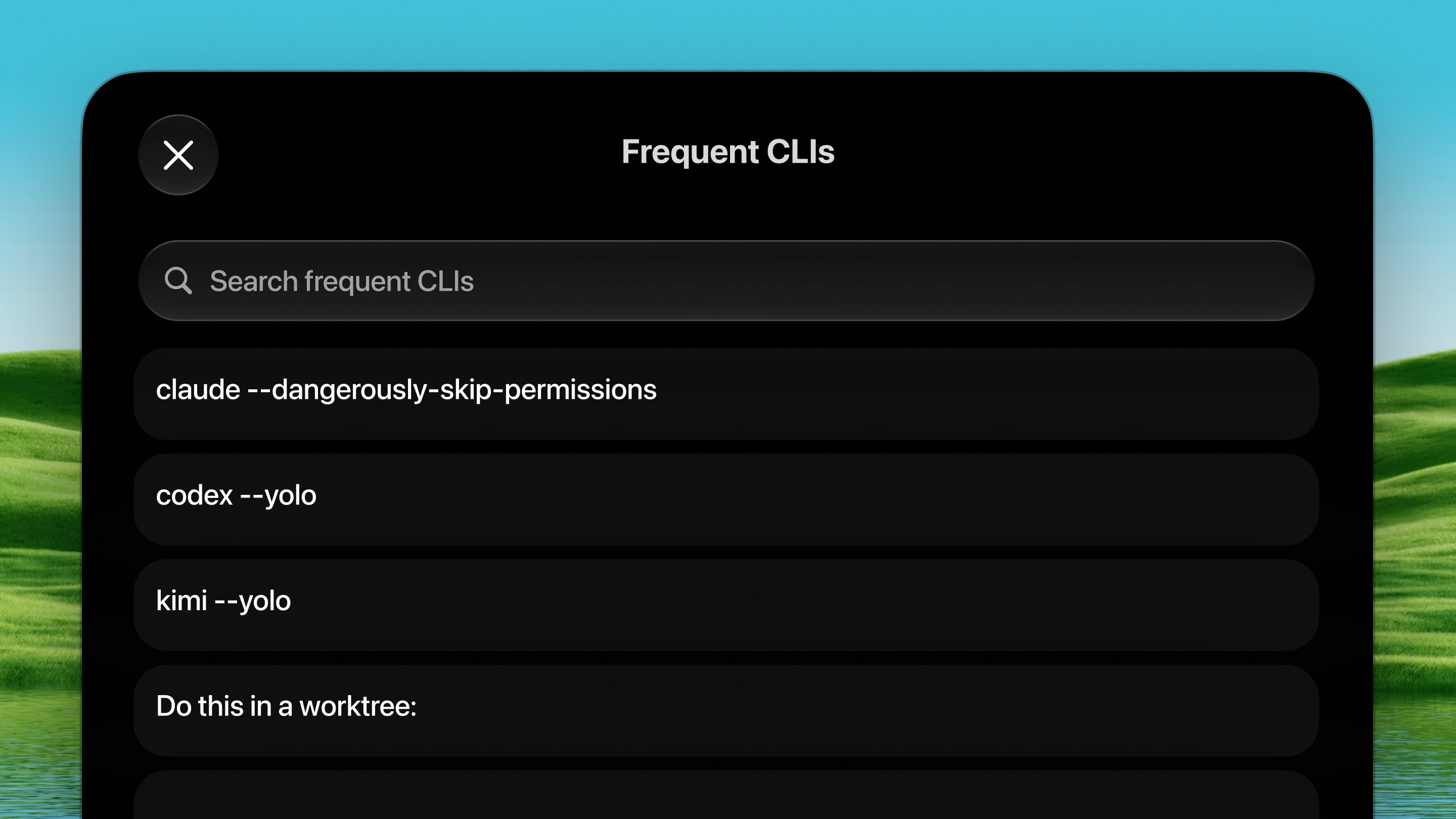
Open it
Press ⌃ ⌥ ↩ from any app.How it works
1
Focus your target
Focus wherever you want the command to go: a terminal, an editor, a chat
box.
2
Open the palette
Press ⌃ ⌥ ↩. Your saved commands float up
as a list.
3
Pick one
Choose with the arrow keys or a click. The command is typed into the
focused app, exactly as if you’d keyed it yourself.
Two modes (press Tab to switch)
- Insert (default): types the command into the focused app.
- Open in Terminal: opens a fresh terminal in your default folder and
runs the command there. Great for
claude,codex, or a dev server you want in its own window.
Configuring commands
Settings → Tools → Frequent CLIs:- Add as many commands as you like, each with a Title, the Command text, and a chosen icon. Click ✎ (or double-click a row) to edit, drag to reorder, or press ⌘E from the palette to edit the highlighted command.
- Toggle the per-command insert-and-run (↩) behavior.
- Open in Terminal, default folder: the directory that mode starts in.
- Also skip Claude’s folder-trust prompt on YOLO launches: when a command
runs
claude --dangerously-skip-permissions, Dax marks the folder trusted in~/.claude.json(a backup is saved first) so Claude drops straight in instead of showing its trust banner. Off shows the normal one-time prompt.